Every developer uses Git. It is the universal language of code collaboration. But learning Git can feel like memorizing a spellbook — add, commit, push, pull, merge, rebase, stash… What do all these words mean?
This guide cuts through the noise. You learn the 8 commands that cover 95% of your daily Git usage — and you make your first GitHub pull request by the end of this guide.
1. What Is Git? (30 Seconds)
Git tracks changes to your files. It lets you save versions of your code, go back to any previous version, and collaborate with others without overwriting each other's work.
GitHub is a website that stores Git repositories in the cloud. It adds collaboration features — pull requests, issues, project boards — on top of Git.
Git is the tool. GitHub is the platform. You use Git on your computer. You use GitHub in your browser.
2. Installing Git
# macOS
brew install git

# Windows
# Download from https://git-scm.com/download/win

# Linux (Ubuntu/Debian)
sudo apt install git

# Verify
git --version
# git version 2.45.0
3. Configuring Git (First Time Only)
git config --global user.name "Your Name"
git config --global user.email "your@email.com"

# Optional: set default branch name to main
git config --global init.defaultBranch main
4. Your First Repository
Create a New Project
mkdir my-project
cd my-project
git init                     # Initialize a Git repository
echo "# My Project" > README.md
git add README.md            # Stage the file
git commit -m "First commit" # Save the change
That is the core Git loop: change files → stage (add) → commit. Everything else builds on this.
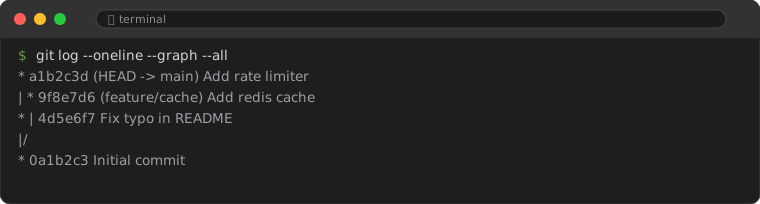
5. The 8 Commands You Will Use Every Day
| Command | What It Does | When to Use |
|---|---|---|
git status | Shows what files have changed | Before every commit |
git add . | Stages all changes | Before committing |
git commit -m "msg" | Saves staged changes | After staging |
git push | Uploads commits to GitHub | After committing |
git pull | Downloads changes from GitHub | Before starting work |
git branch | Lists / creates branches | Starting new features |
git checkout -b name | Creates + switches to a new branch | Starting new features |
git merge branch | Merges branch into current | After finishing a feature |
6. Push to GitHub (First Time)
Step 1: Create a GitHub Repository
Go to github.com/new. Give it a name. Do NOT check "Add a README" (you already have one). Click "Create repository."
Step 2: Link Your Local Repo to GitHub
git remote add origin https://github.com/YOUR-USERNAME/my-project.git
git branch -M main
git push -u origin main
Refresh your GitHub page. Your code is there.
7. Branches: Work on Features Without Breaking Main
Branches let you work on new features in isolation. The main branch always has working code. Feature work happens on separate branches.
# Create and switch to a new branch
git checkout -b add-dark-mode

# Make changes...
# (edit files, add new features)

git add .
git commit -m "Add dark mode toggle"
git push origin add-dark-mode
8. Your First Pull Request
A pull request (PR) is a request to merge your branch into main. It is where code review happens.
Step by Step:
- Push your feature branch to GitHub
- Go to your repository on GitHub
- Click "Compare & pull request" (GitHub shows this automatically after you push)
- Write a title and description of what you changed
- Click "Create pull request"
- Wait for review (or merge it yourself if you are solo)
- Click "Merge pull request"
- Delete the branch (GitHub offers a button)
After merging on GitHub, update your local main:
git checkout main
git pull origin main
9. Your Daily Git Workflow
# 1. Start the day: get latest changes
git checkout main
git pull origin main

# 2. Create a branch for your task
git checkout -b fix-login-bug

# 3. Work, save, commit (repeat)
# ... edit files ...
git status
git add .
git commit -m "Fix login redirect bug"

# 4. Push and create PR
git push origin fix-login-bug

# 5. Create pull request on GitHub
This is the complete workflow. Master it and you are a productive Git user.
10. Common Mistakes and How to Fix Them
\"I committed to the wrong branch\"
# Undo the last commit (keeps changes)
git reset --soft HEAD~1

# Switch to the correct branch
git checkout -b correct-branch

# Re-commit
git add .
git commit -m "Correct commit"
\"I want to undo all local changes\"
git checkout . # Discard all unstaged changes\"Merge conflict!\"
git merge --abort to back out and start over.Git tells you which files conflict. Open them, look for <<<<<<<, =======, >>>>>>> markers. Decide which version to keep, remove the markers, save, then:
git add .
git commit -m "Resolve merge conflict"
Git is not hard — you just need to learn the right 8 commands and the daily workflow. The rest you look up when you need it.
Frequently Asked Questions
What is the difference between Git and GitHub?
Git is the version control software that runs on your computer. GitHub is a cloud platform that hosts Git repositories and adds collaboration tools.
Should I use the command line or a GUI?
Learn the command line first. It works everywhere, all tutorials use it, and once you know CLI you can use any GUI (GitHub Desktop, GitKraken, VS Code Git) with full understanding.
What is a .gitignore file?
A file that tells Git which files to ignore (node_modules, .env, build artifacts, etc.). Create one at the root of your project. GitHub provides templates for every language.