You have heard about Docker. Your colleagues use it. Job descriptions list it. But what is Docker actually, and why should you — a developer who just writes code — care?
This guide gets you from zero to running your first containerized app in 15 minutes. No jargon. No theory dumps. Just working code.
1. What Is Docker? (The 30-Second Version)
Docker packages your app and everything it needs to run (code, libraries, runtime, OS tools) into a single, portable box called a container. That container runs identically on your laptop, your colleague's Mac, a cloud server, or anywhere Docker is installed.
If your app works in a Docker container on your machine, it will work on anywhere. No more "it works on my machine."
Container vs Virtual Machine
| Feature | Container | Virtual Machine |
|---|---|---|
| Startup time | Seconds | Minutes |
| Size (typical) | ~50 MB (Alpine) | ~5 GB |
| Isolation | Process-level | Full OS |
| Performance | Near-native | Overhead from hypervisor |
2. Installing Docker
Download Docker Desktop from docker.com. It is free for personal use.
# Verify installation
docker --version
# Docker version 27.0.0
3. Your First Container
Let's run a container right now. No coding needed.
docker run hello-worldYou will see a message confirming Docker is working. That container downloaded an image, ran it, printed a message, and exited — all in under 2 seconds.
4. Build Your Own Docker Image
Create a simple Python app and containerize it.
Step 1: Write a Python App
# app.py
from flask import Flask

app = Flask(__name__)

@app.route("/")
def hello():
    return "Hello from Docker!"

if __name__ == "__main__":
    app.run(host="0.0.0.0", port=5000)
Step 2: Create a Dockerfile
# Dockerfile
FROM python:3.12-slim

WORKDIR /app

COPY app.py .
RUN pip install flask

EXPOSE 5000

CMD ["python", "app.py"]
Step 3: Build the Image
docker build -t my-flask-app .Step 4: Run the Container
docker run -p 5000:5000 my-flask-appOpen http://localhost:5000 in your browser. You should see "Hello from Docker!"
5. Dockerfile Explained (Line by Line)
| Instruction | Meaning |
|---|---|
FROM python:3.12-slim | Start from a lightweight Python 3.12 image |
WORKDIR /app | Set working directory inside the container |
COPY app.py . | Copy our code into the container |
RUN pip install flask | Install dependencies |
EXPOSE 5000 | Document which port the app uses |
CMD ["python","app.py"] | The command to run when the container starts |
6. Essential Docker Commands
# List running containers
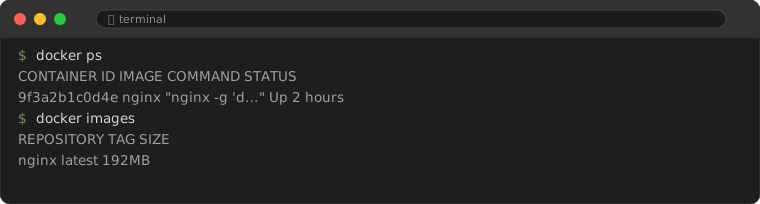
docker ps

# List all containers (including stopped)
docker ps -a

# Stop a container
docker stop container-name

# Remove a container
docker rm container-name

# List images
docker images

# Remove an image
docker rmi image-name

# View container logs
docker logs container-name
7. Docker Compose: Running Multiple Services
Real apps often need multiple services (web app + database + cache). Docker Compose orchestrates them.
# docker-compose.yml
version: "3.9"

services:
  web:
    build: .
    ports:
      - "5000:5000"
    depends_on:
      - redis

  redis:
    image: redis:alpine
    ports:
      - "6379:6379"
# Start all services
docker compose up
# Start in background
docker compose up -d
# Stop all services
docker compose downRUN pip install flask installs the latest version. For reproducible builds, pin your dependencies: RUN pip install flask==3.0.0. Use requirements.txt with pinned versions instead of inline pip install commands.9. Common Mistakes
9.1. Using the Wrong Base Image
Beginners often use python:3.12 (the full image, ~1 GB). The -slim variant (~150 MB) or -alpine variant (~50 MB) are much smaller and contain everything most Python apps need. Smaller images download faster, use less disk space, and have a smaller attack surface.
9.2. Forgetting .dockerignore
Without a .dockerignore file, Docker copies everything in your project directory — including node_modules, .git, __pycache__, and .env files. Create a .dockerignore that mirrors your .gitignore to keep images lean and prevent accidentally baking secrets into the image.
# .dockerignore
__pycache__
*.pyc
.env
.git
node_modules
venv
.pytest_cache
9.3. Not Mapping Ports Correctly
The -p 5000:5000 flag maps host port (first number) to container port (second number). They do not need to match. If port 5000 is already in use on your host, you can use -p 8080:5000 — then access the app at localhost:8080.
10. Where to Go From Here
- Optimize your images: Use multi-stage builds, Alpine base images,
.dockerignore - Learn networking: Container-to-container communication, ports, volumes
- CI/CD: Build Docker images in GitHub Actions or GitLab CI
- Orchestration: Kubernetes when you need to manage containers at scale
Docker is not hard. The first 15 minutes are the hardest. After that, you will never go back to "it works on my machine."
Frequently Asked Questions
Do I need Docker if I am a solo developer?
Not required, but highly recommended. Docker eliminates environment issues, makes onboarding instant, and is a top-requested skill in job listings.
Is Docker free?
Docker Desktop is free for personal use, education, and small businesses (under 250 employees / under $10M revenue).
What is the difference between a Docker image and a container?
An image is a blueprint (like a class in programming). A container is a running instance of that blueprint (like an object). You build an image once, and run many containers from it.